Sometimes it is desireable to render in layers or passes that will be combined in post production. This give the compositor more control especially when integrating CG with live action. You may choose to render passes like diffuse, shadow, occlusion, specular, reflection, depth - the list goes on and the choices depend on many factors.
What I want to demonstrate here is a way to tackle a reflection pass using some of the new maya 2008 shaders. Actually I am going to use a new "unsupported" shader - so... you have been warned.
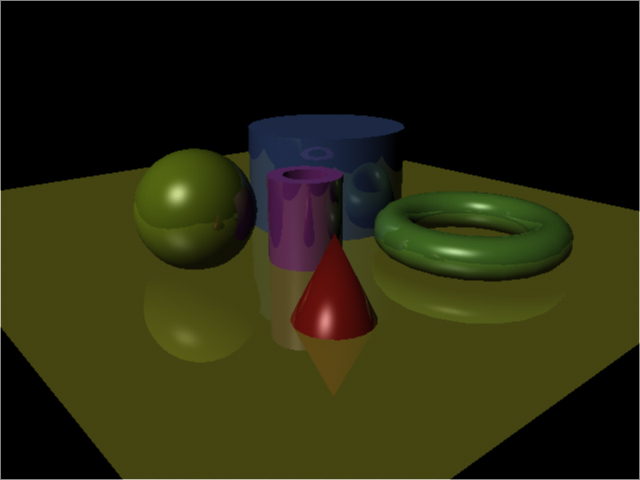
First, a render of some reflective surfaces.

One way to get a "reflection pass" is to make the diffuse components of all the shaders black. That way we are left with just the reflections. Here is the result if I do that.
The problem is that the sphere is reflected in the cylinder and the ground, but it's reflection is black. What we really want is colored reflections and to do that we need the new mip_rayswitch shader.
mip_rayswitch was included in maya 2008 as an "unsupported" shader, which means it was hidden away. To expose it you need to edit a mel script called mentalrayCustomNodeClass.mel (C:\Program Files\Autodesk\Maya2008\scripts\others). Right at the end of the file is this line
The job of mip_rayswitch is to help the renderer decide what content particular types of rays will contain. There are several ray types, but we will look at the "eye" ray and the "reflection"ray. The "eye" ray is what we see through the camera. The "reflection" ray is... I bet you can guess. So we want the fully colored shader to be seen by the reflection ray and just the reflections to be seen by the camera (the eye ray). And to get that we need the connection editor and the new mia_material_x shader.
mia_material_x is a more advanced maya2008 version of the maya8.5 mia_material. One of its new features is "multiple outputs" - meaning it has the ability to output a long list of components independantly. Here we are interested in only two of these called "result" and "refl_result".
mia_material_x.result is the "beauty" pass. Its what you usually see when you render it. On the other hand, mia_material_x.refl_result is just the reflection component of the shader. What we are going to do is create a shader network where the mia_material_x.result is used for the reflection ray in mia_rayswitch and mia_material_x.refl_result is used for the eye ray. This needs to be done for each shader.
Here is a picture of the shading network with the important connections highlighted.

The mip_rayswitch is hooked up to the shadingGroup's mentalray material

Now if we rerender that reflection pass we get this

Now we have colored reflections, but only the reflections.
Here is my maya scene file if you want to have a look.
What I want to demonstrate here is a way to tackle a reflection pass using some of the new maya 2008 shaders. Actually I am going to use a new "unsupported" shader - so... you have been warned.
First, a render of some reflective surfaces.
One way to get a "reflection pass" is to make the diffuse components of all the shaders black. That way we are left with just the reflections. Here is the result if I do that.
The problem is that the sphere is reflected in the cylinder and the ground, but it's reflection is black. What we really want is colored reflections and to do that we need the new mip_rayswitch shader.
mip_rayswitch was included in maya 2008 as an "unsupported" shader, which means it was hidden away. To expose it you need to edit a mel script called mentalrayCustomNodeClass.mel (C:\Program Files\Autodesk\Maya2008\scripts\others). Right at the end of the file is this line
return "rendernode/mentalray/internal";and you need to change it to this
return "rendernode/mentalray/material";When you restart maya, mip_rayswitch will be one of several new materials in the mental ray section (sadly lacking icons).
The job of mip_rayswitch is to help the renderer decide what content particular types of rays will contain. There are several ray types, but we will look at the "eye" ray and the "reflection"ray. The "eye" ray is what we see through the camera. The "reflection" ray is... I bet you can guess. So we want the fully colored shader to be seen by the reflection ray and just the reflections to be seen by the camera (the eye ray). And to get that we need the connection editor and the new mia_material_x shader.
mia_material_x is a more advanced maya2008 version of the maya8.5 mia_material. One of its new features is "multiple outputs" - meaning it has the ability to output a long list of components independantly. Here we are interested in only two of these called "result" and "refl_result".
mia_material_x.result is the "beauty" pass. Its what you usually see when you render it. On the other hand, mia_material_x.refl_result is just the reflection component of the shader. What we are going to do is create a shader network where the mia_material_x.result is used for the reflection ray in mia_rayswitch and mia_material_x.refl_result is used for the eye ray. This needs to be done for each shader.
Here is a picture of the shading network with the important connections highlighted.
The mip_rayswitch is hooked up to the shadingGroup's mentalray material
Now if we rerender that reflection pass we get this
Now we have colored reflections, but only the reflections.
Here is my maya scene file if you want to have a look.